Segment Controls
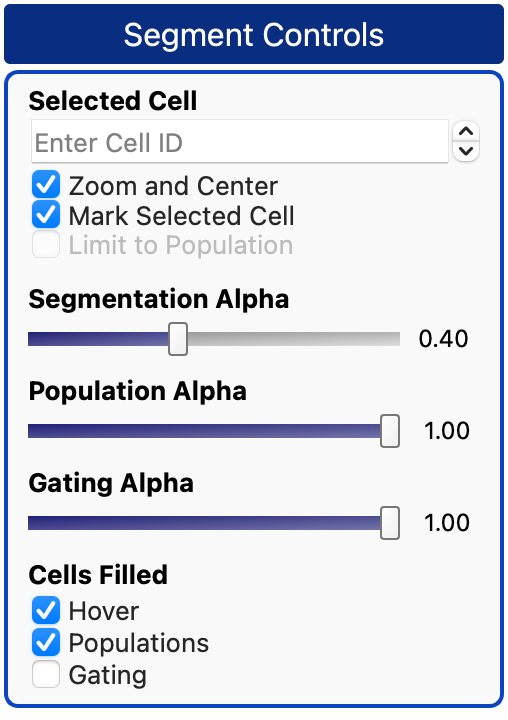
At the bottom right of the interface is the Segment Controls Panel.
Selected Cell
You can navigate to a cell by typing its cellID into the Selected Cell text box. By default the cell will be marked with white crosshairs and the viewer will zoom and center on the cell. You can change these settings with the checkboxes below.
Note: If a cell is near the edge of the image, it won’t be perfectly centered on the screen.
If you manually select a cell by using Shift + LClick on the cell, its ID will be shown in the Selected Cell box.
Adjust Alpha (Opacity) and Fill
Adjust segmentation, population, and gating opacity using the sliders. You can manually set the opacity by editing the number at the right end of the slider.
Tip: 0.4 is our favorite opacity setting for the segmentation.
Below the opacity sliders you can check whether cells will show the borders or the cell will be filled in for hovering highlights, population colors, and gating highlights.
Please see the tutorials where all these options are demonstrated.