Populations
In CellTune, all annotations about cells are represented as populations. A population can describe any label — cell types, phenotypes, functional states, clustering results, or any user-defined category. Because biology is multi-dimensional, cells may belong to multiple populations at the same time (e.g., “CD8T”, “Exhausted”, “Ki67+”).
To organize these labels, CellTune groups populations into population sets.
Population Sets
A population set is simply a collection of related populations. Each set defines one dimension of annotation, and cells can belong to more than one population within that set. Cells can also not belong to any populations in a population set.
Examples:
CellType classifications population set
- Populations: Bcell, CD8T, Fibroblast, …
- Each cell is typically assigned to one celltype in the final classification.
Clustering population set
- Populations: Cluster1, Cluster2, Cluster3, …
- Each cell is typically assigned to one cluster.
Labels population set
- Populations: (same as classification)
- Only labeled cells are assigned to up to 1 celltype. We use these for training.
CD8T_state population set
- Populations: Naive, Exhausted, Proliferating, …
- Only CD8T cells are annotated; others remain unassigned.
Populations Folder Structure
The Populations folder in your project as the following structure:
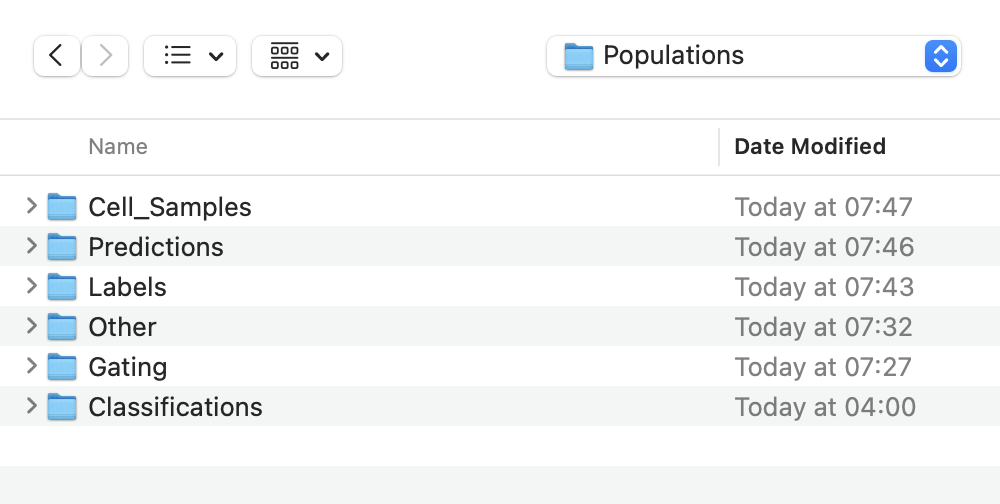
Populations/
    Predictions/
    Classifications/
    Labels/
    Cell_Samples/
    Info/
    Gating/
    Other/
Predictions: Model prediction outputsClassifications: Final assigned cell typesLabels: User-provided labelsCell_Samples: Sampled cells saved during gating or active learningGating: Gating resultsInfo: Metadata describing population setsOther: Miscellaneous population data
Populations Panel
The Populations Panel is found at the top right of the interface.
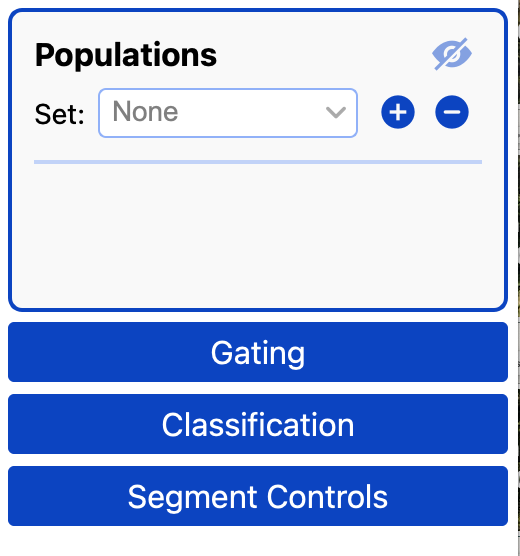
- The eye icon at the top toggles the visibility of all populations.
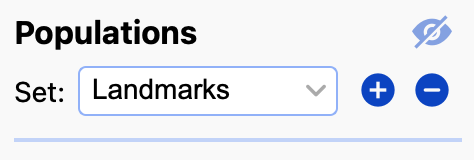
- To the right of the word ‘Set’ is a dropdown box you can use to select population sets.
- You can type in the box and press the
+button to create an empty population with a given name, or just press the+button and a default name will be given.
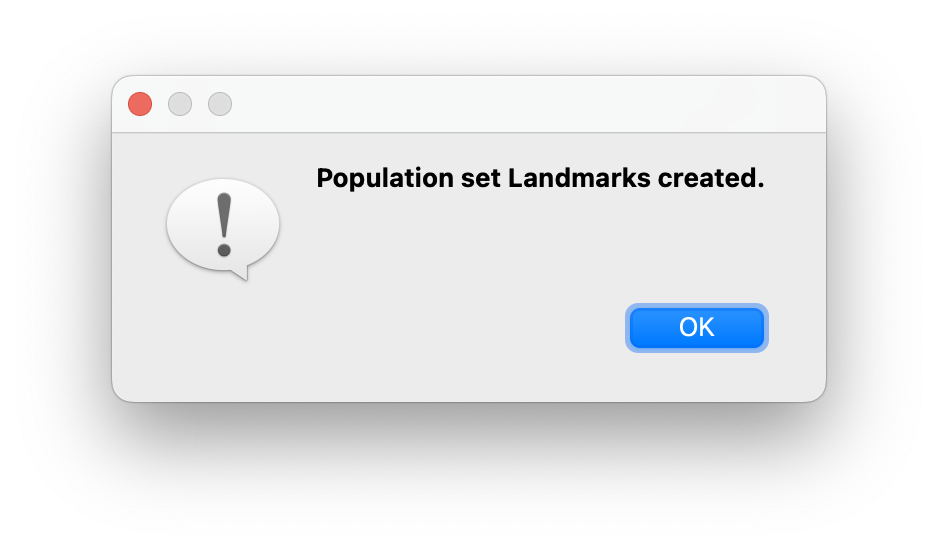
You will get the following message when a population set is created:
- You can delete the current population set with the
-button.
Populations can be created through labeling, gating, classification predictions, etc. Or they can be imported.
When populations are available you will see their names, colors, and a visibility icon for toggling the population on/off. 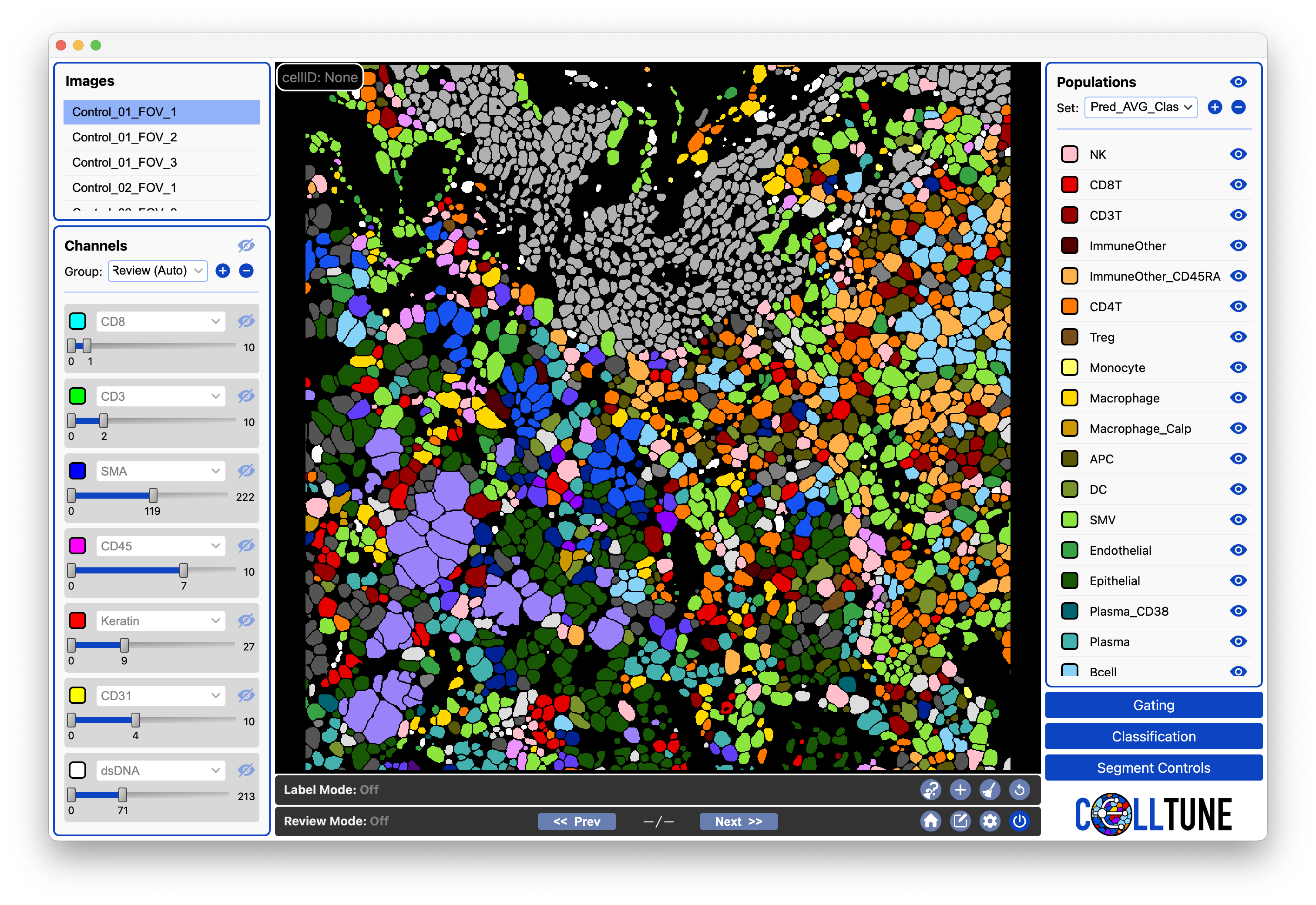
If a cell is selected, the populations it is assigned to will be highlighted in the populations panel. Clicking on a population when a cell is selected will assign the cell to that population. It will also by default remove other assignments in the same population set, unless you hold Cmd for multi-selection. Cmd can also be used to deselect a population.
If a cell is not selected, then populations can be clicked on and selected for use in gating population filter. You can also select a range of populations with Shift and select all with Cmd + A.
Populations Info
The data from the CellTypesTable is stored in the database as population set info.
The celltype will have:
- a color assigned to it
- [optional] classification rules (Primary, Secondary, & Tertiary Markers)
- [optional] associated channels (Channel_1, Channel_2, and Channel_3).
You can import populations info for the current population set through the menu:
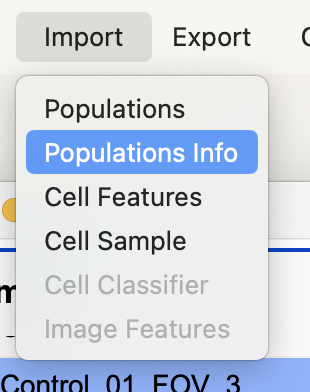
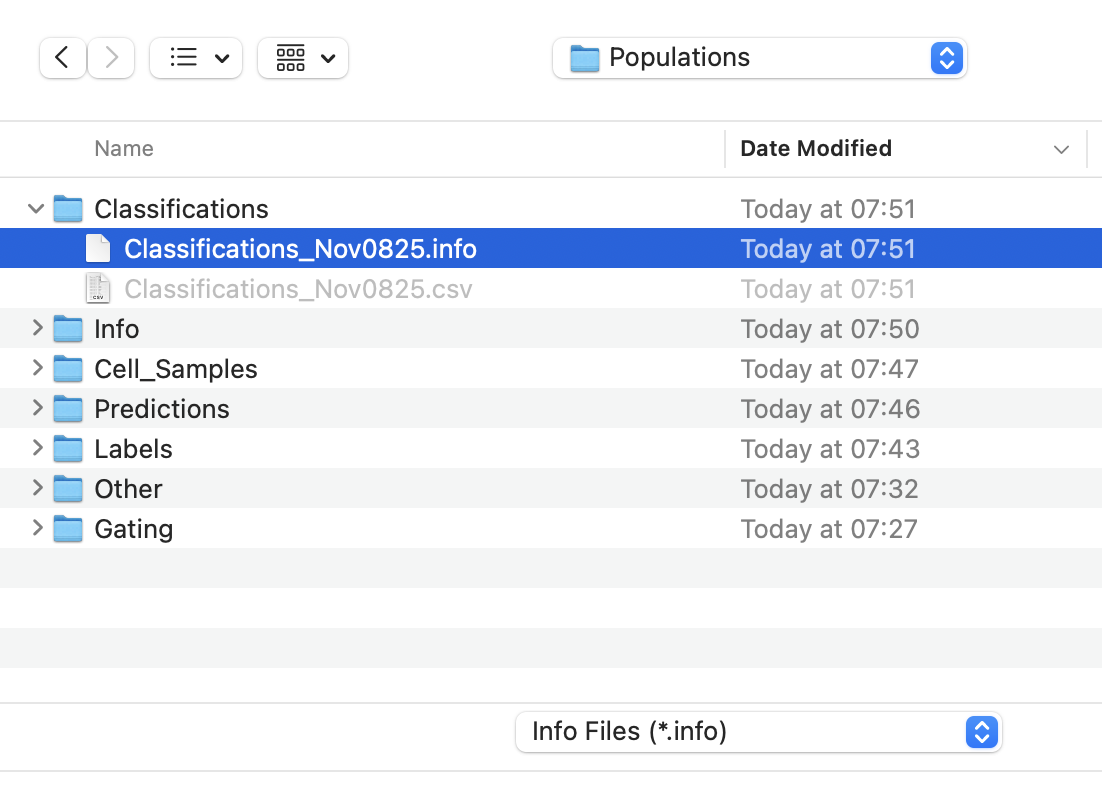
Browse for the info file:
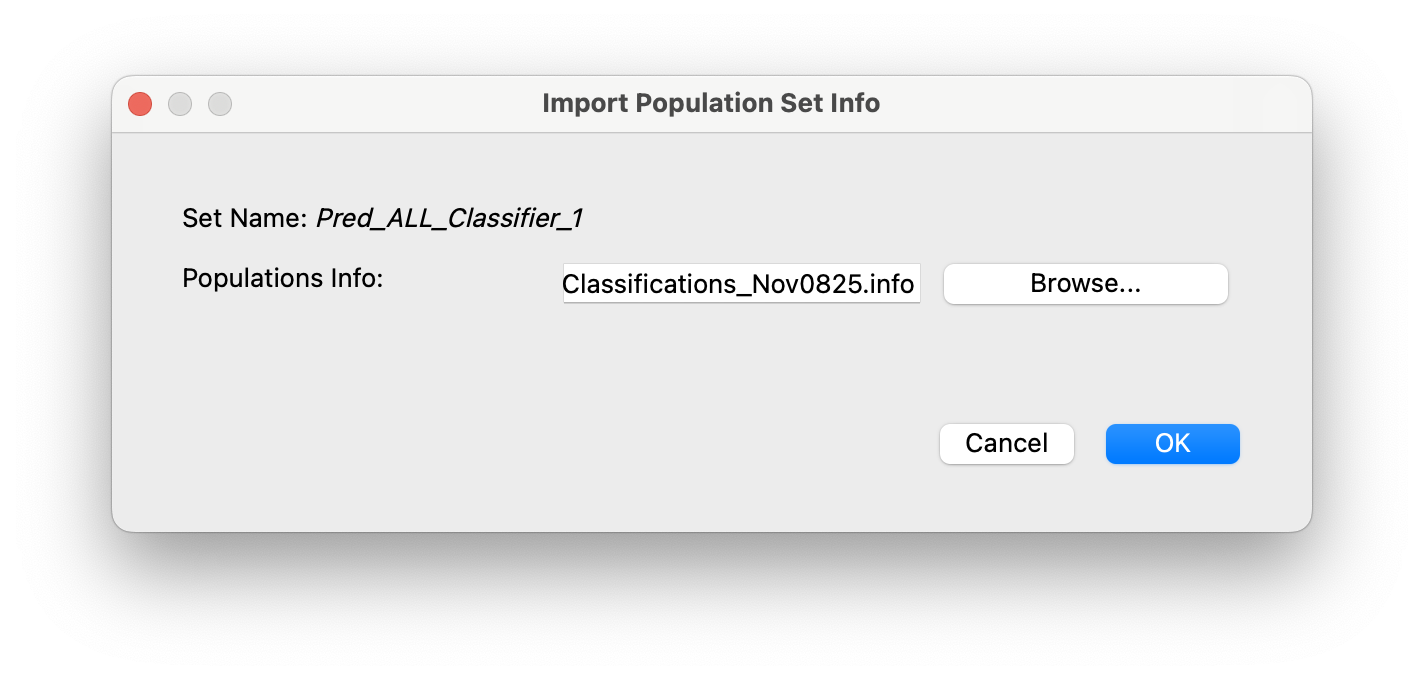
You can select the CellTypeTable (we recommend making a backup copy of the original if you are testing changes). Or you can select an exported populations info file (.info json). These are exported alongside the population set .csv when you export populations.
Population Counts
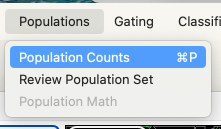
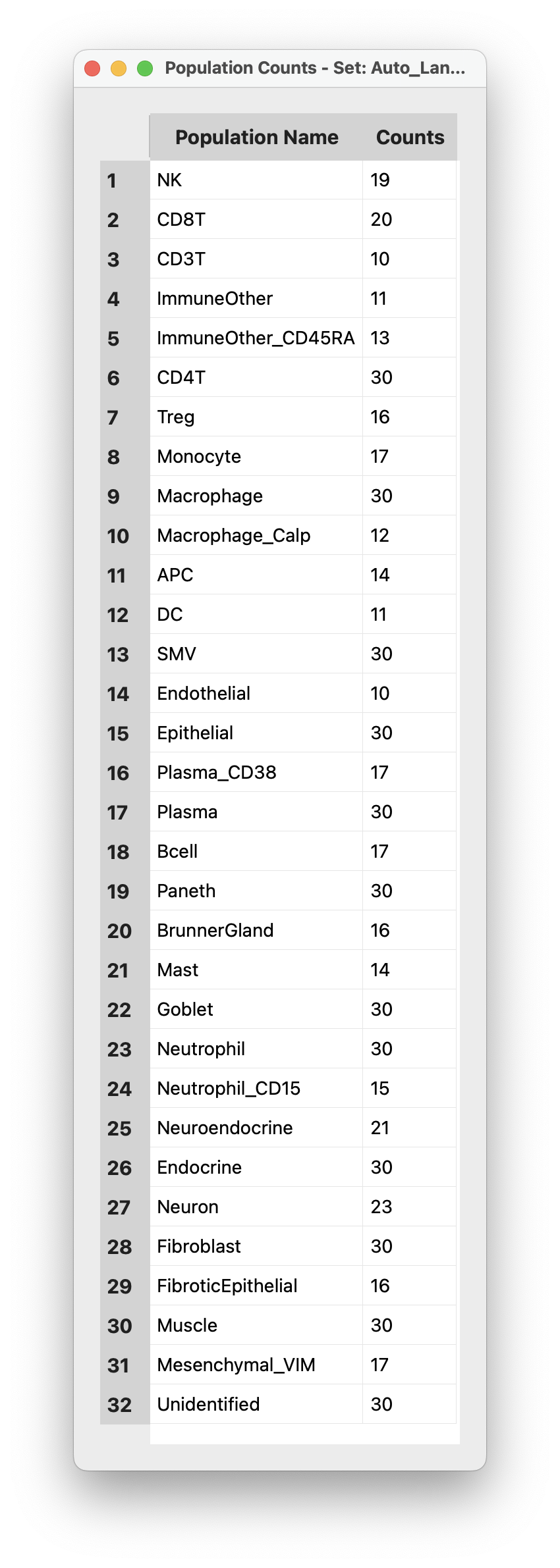
You can see how many cells are assigned to each population in a pop up window, go to the menu and select Population Counts or use the keyboard shortcut Cmd + P (Mac)