Viewer Legends & Hover Functionality
Legends are an important visual reference when navigating your images. They give you rapid, dynamic information—what channels are on, which cell you’re hovering over, the populations it belongs to, and the markers it expresses. This section shows how to use legends to stay oriented and understand your data at a glance.
Turning the Legend On/Off
The legend can be turned on/off from the menu or with the keyboard shortcut Cmd + L. 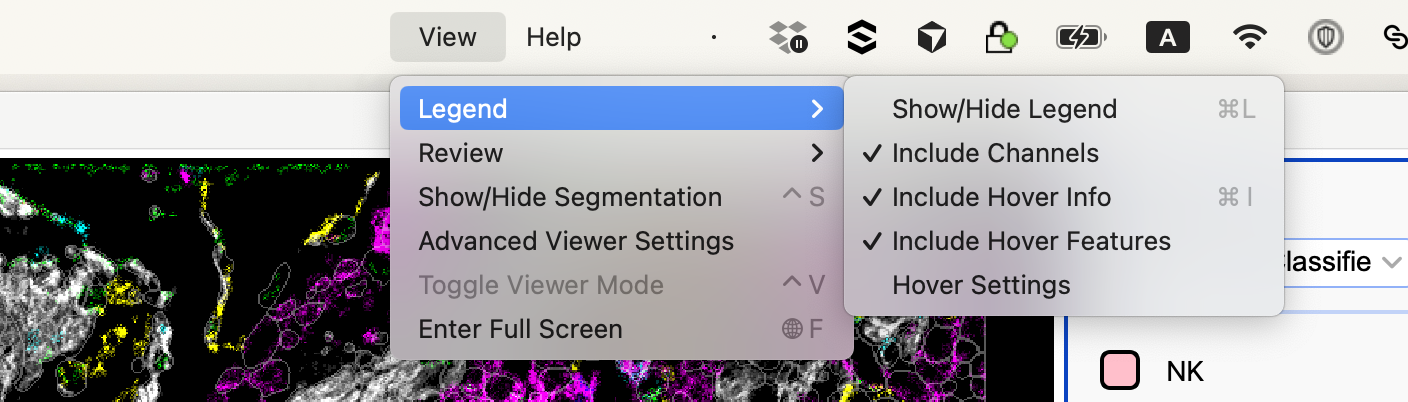
Including Channels, Cell Info, & Cell Features in the Legend
The legend shows which channels are on:
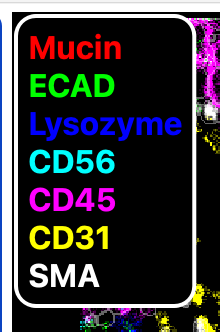
To turn off cell info inclusion in the legend, use the legend menu or keyboard shortcut Cmd + I.
To adjust what cell info is shown in the hover setting, use the legend menu:
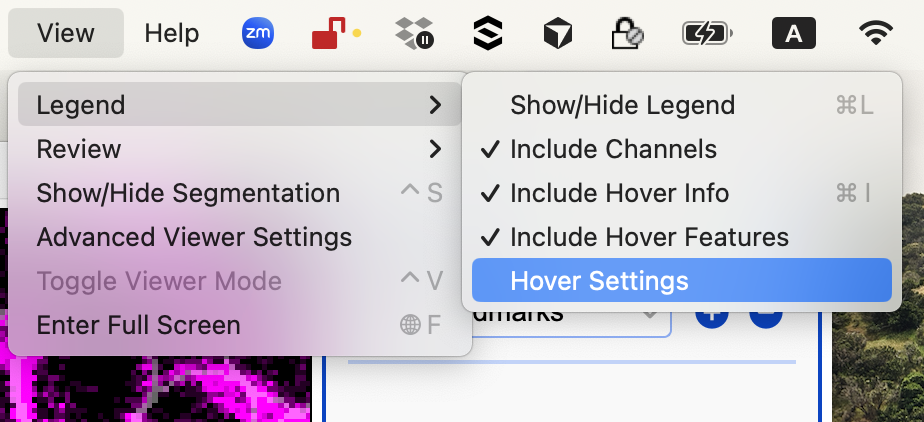
Selecting Hover Features
Select which features will be shown in the legend when hovering over a cell: 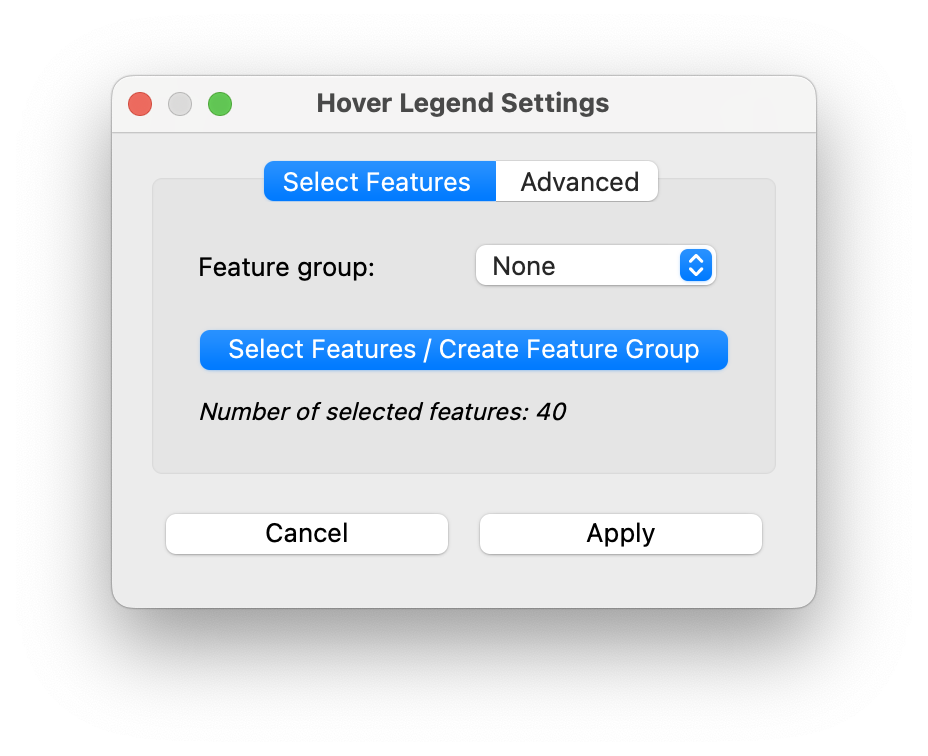
You can select features manually: 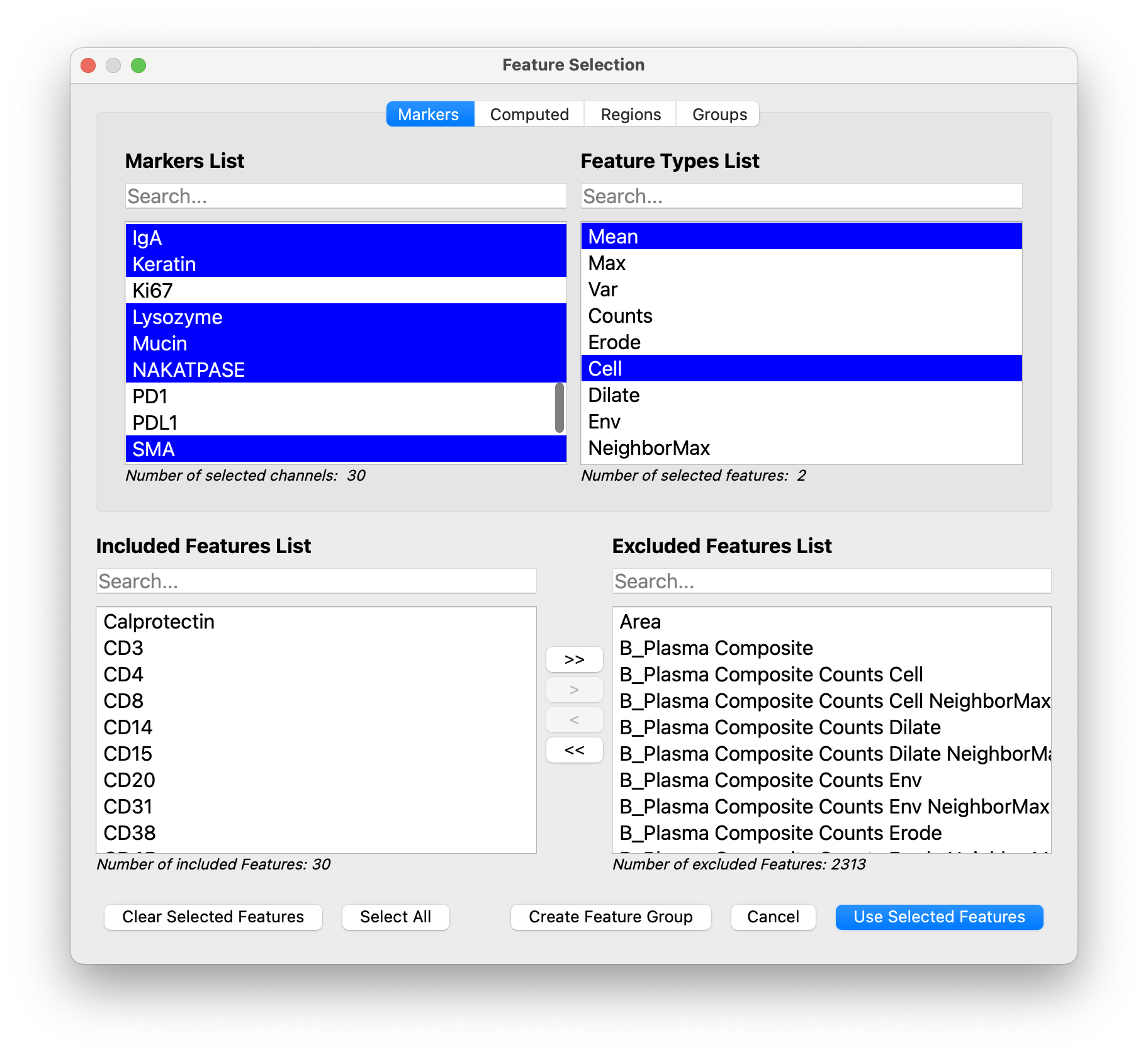
We recommend selecting the mean of the lineage features (Mean + Cell will be selected automatically) as well as any relevant subregions. See Features Documentation for more info.
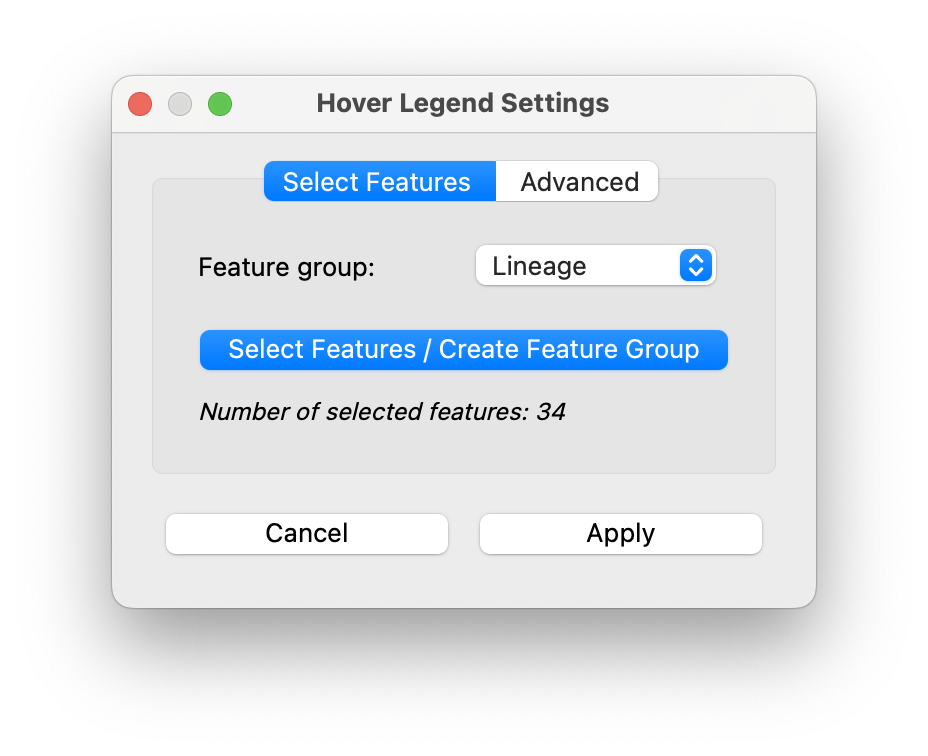
You can also select a feature group (Highly Recommended!) We create a Lineage feature group and select it here:
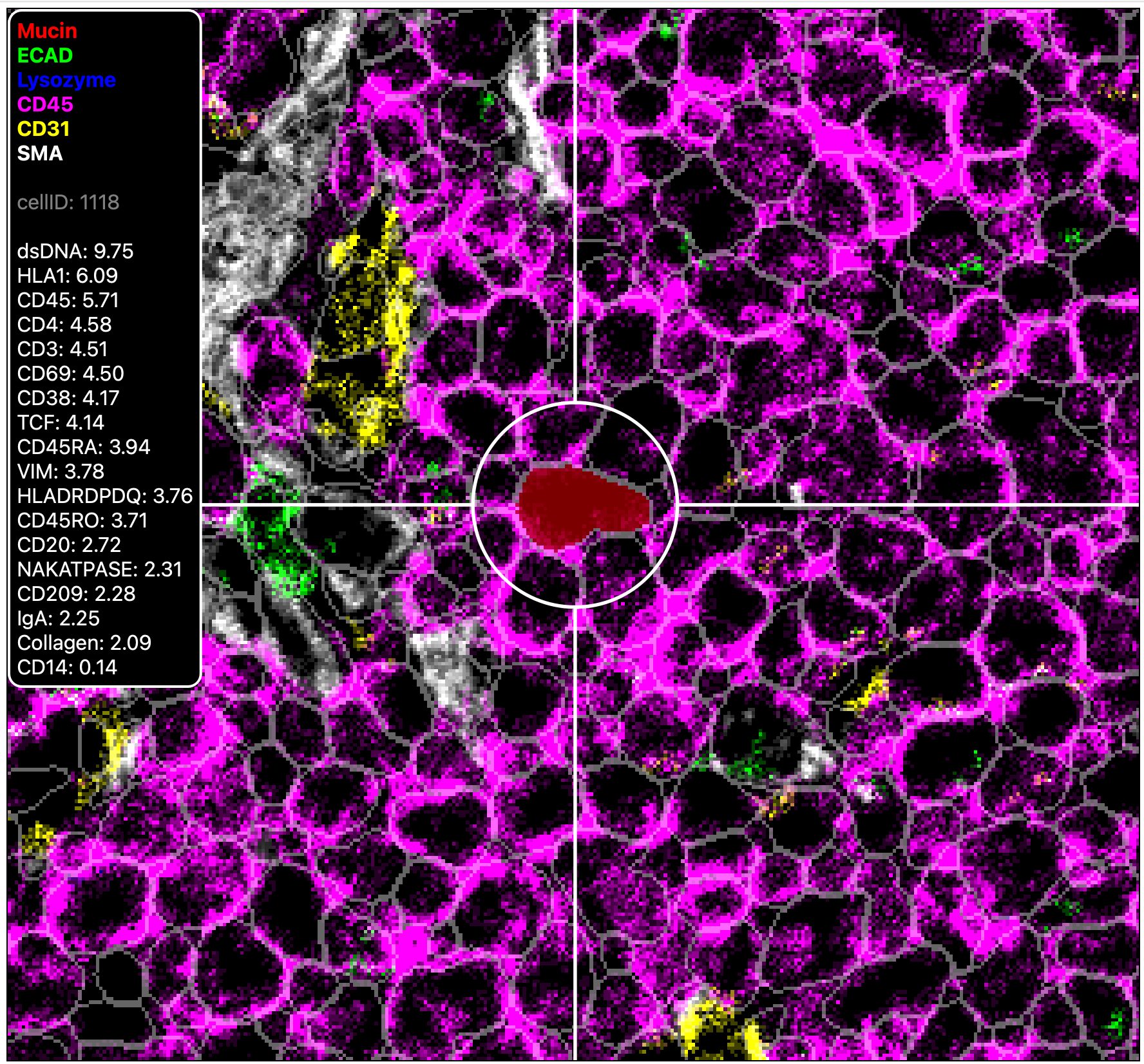
Compare the legend before filtering for only lineage markers:
and after filtering:
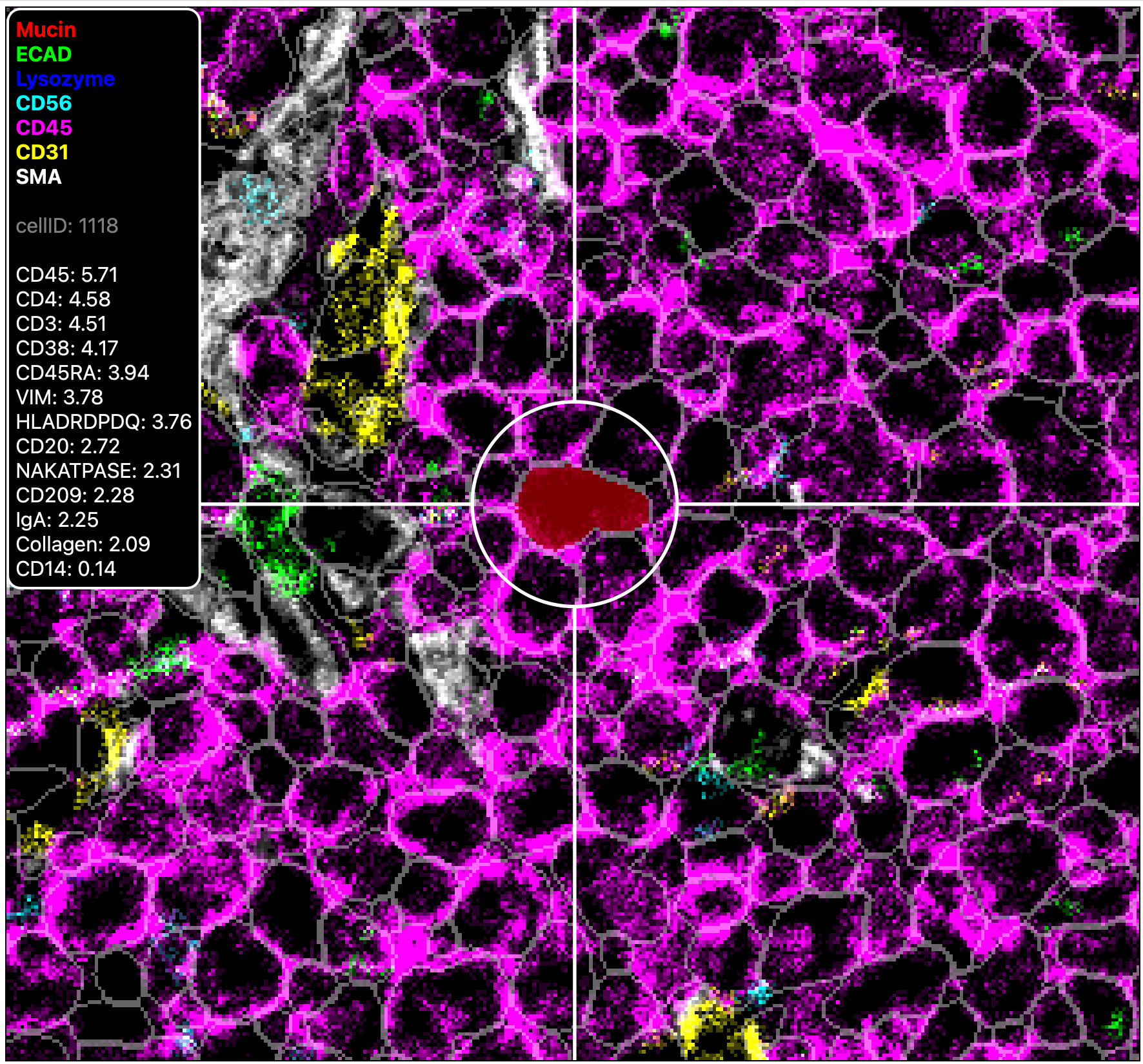
In order for the hover info to be most informative to cell type identification, we filter out markers like DNA which are high for all cells.
Advanced Hover Legend Settings
In the advanced settings you can control:
- Sorting Features
- Including Zero Values
- Limiting to Top #N Features
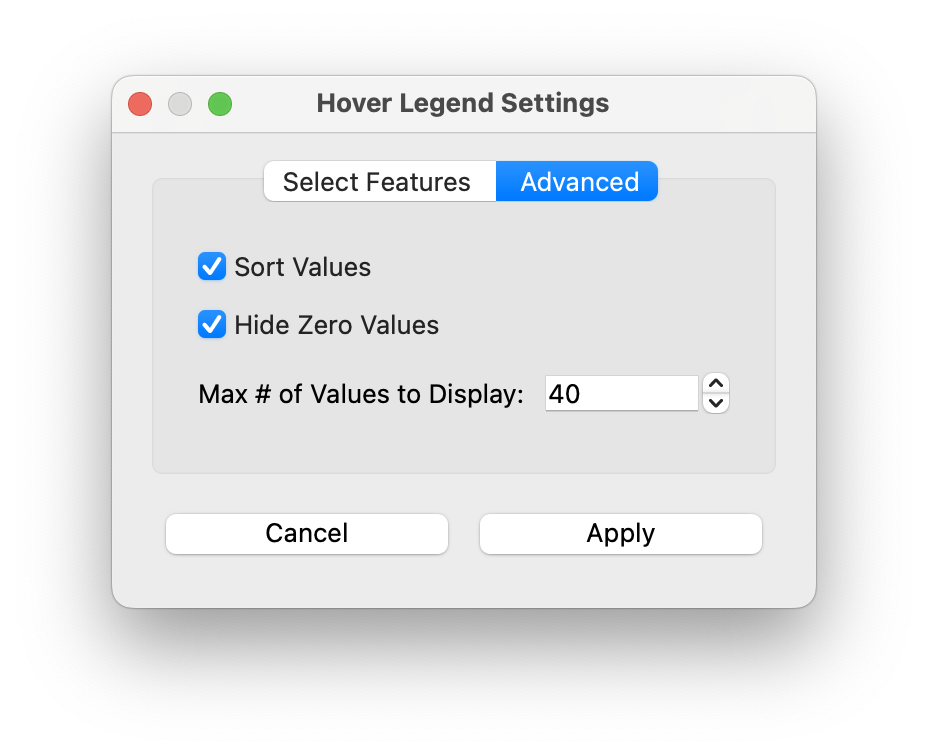
We recommend sticking with the defaults (sorted & zero-excluded) for classification.