Project Setup
New Project
After selecting New Project from the startup menu, the New Project Dialog will open:
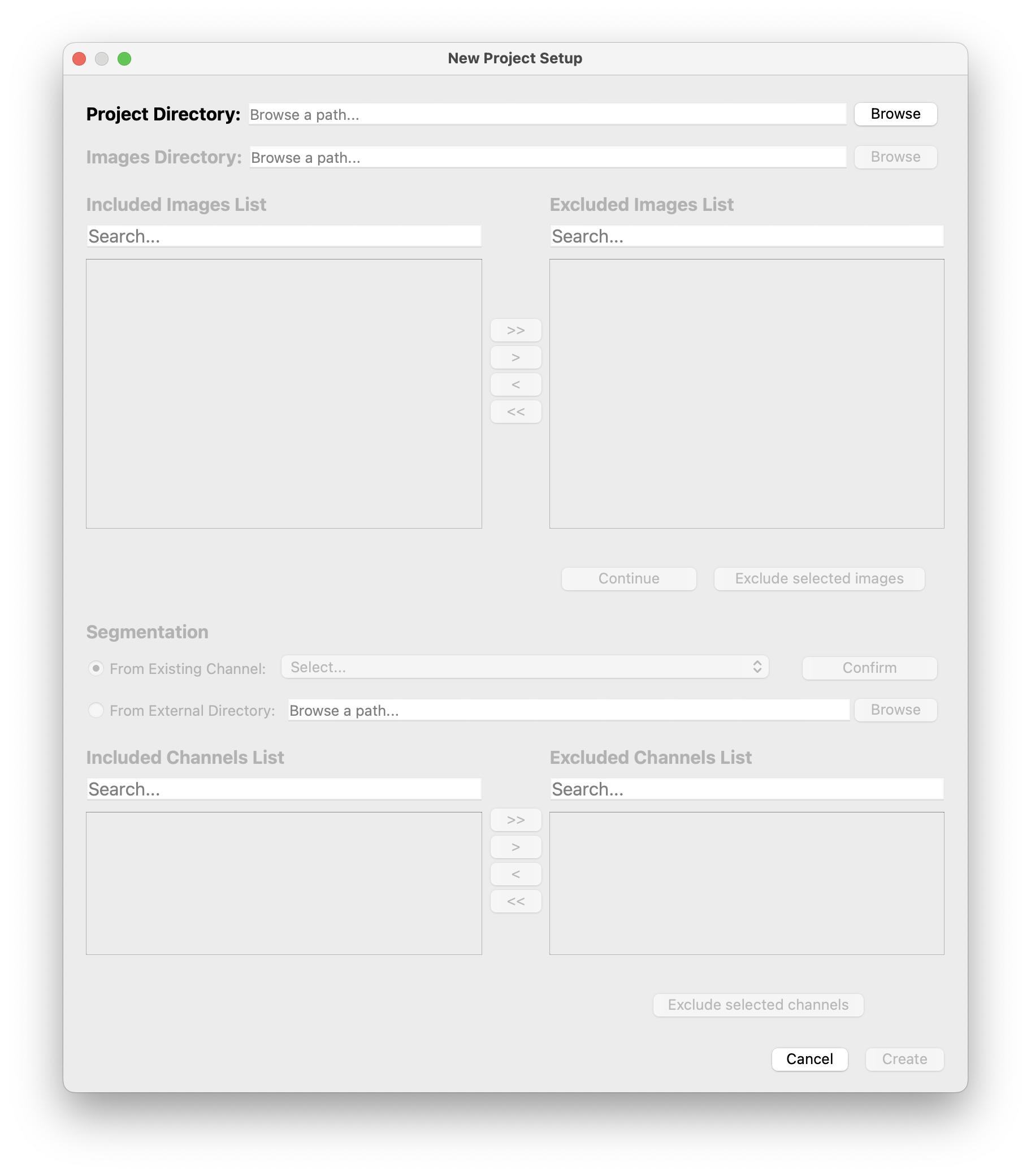
First you will need to select your project directory. If you haven’t already, please see the Demo Data in the turial, and/or the Projects Documentation to keep things organized.
Click browse to select your project directory. You should create a new empty folder inside your CellTune_Projects folder.
Then select your images directory. The images can reside in CellTune_Data/{PROJ_NAME}/Images folder or elsewhere. They should be formatted and pre-processed already.
Images will be linked (soft/hard link - so it does not make another copy) to your project folder. You will see this message during the process:
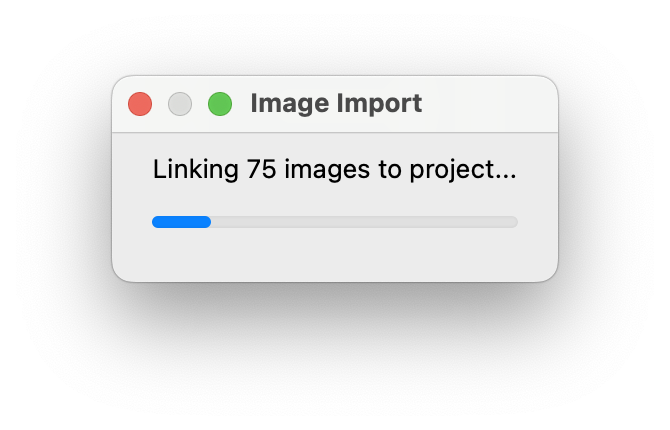
When the images have loaded you will see them in the dialog:
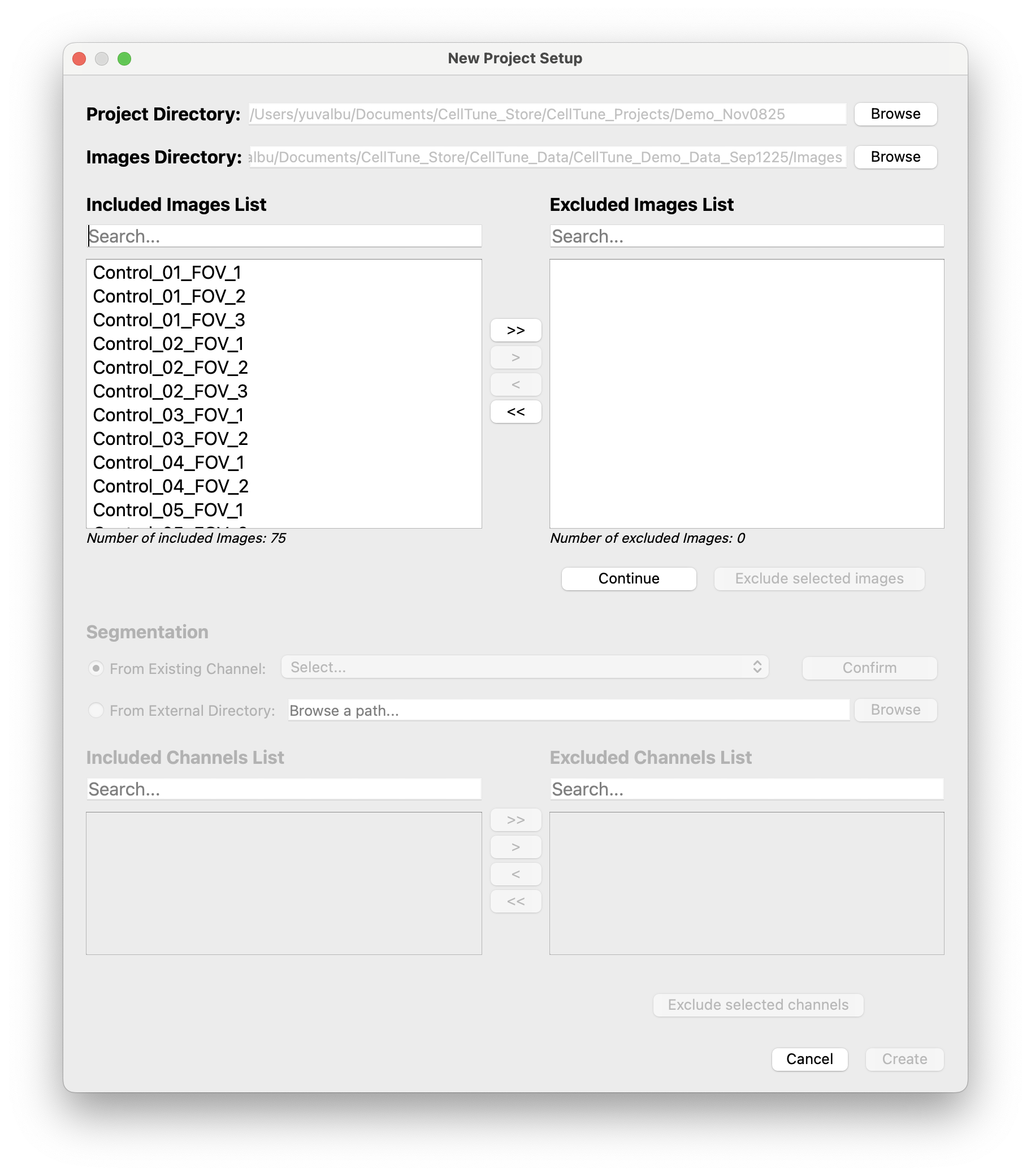
You can move images to the right side to exclude them from the project here. (Their links to the project will be removed, the original data is never touched!!!)
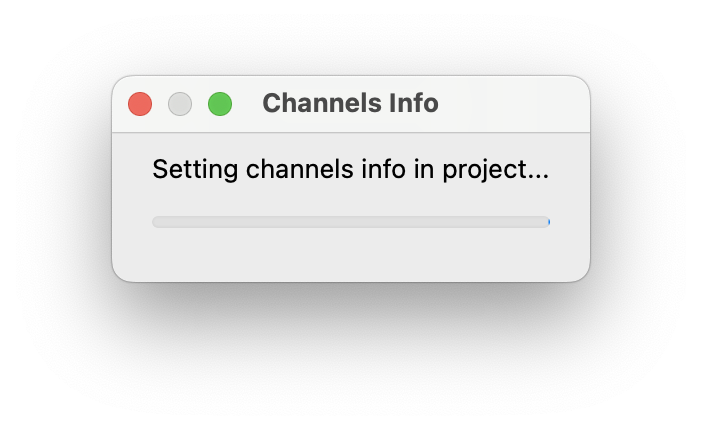
When you click continue, CellTune will read all the channels from one of your images (It is assumed that channels are exactly the same for all images currently!! So please make sure that you format your data properly. We will add all these checks in the future.) CellTune will extract some channel info (channel name, file type, etc) into the database based on this.
During this process you will see this message:
Next you will select the segmentation. If it’s a single TIFF image directory you can select from the list of channels. It will automatically select ‘segmentation_labels’ if it is in there. Alternatively, you will need to select a folder of segmentations formatted such that the names are {IMAGE_NAME}_segmentation_labels.tif see the Segmentation Documentation
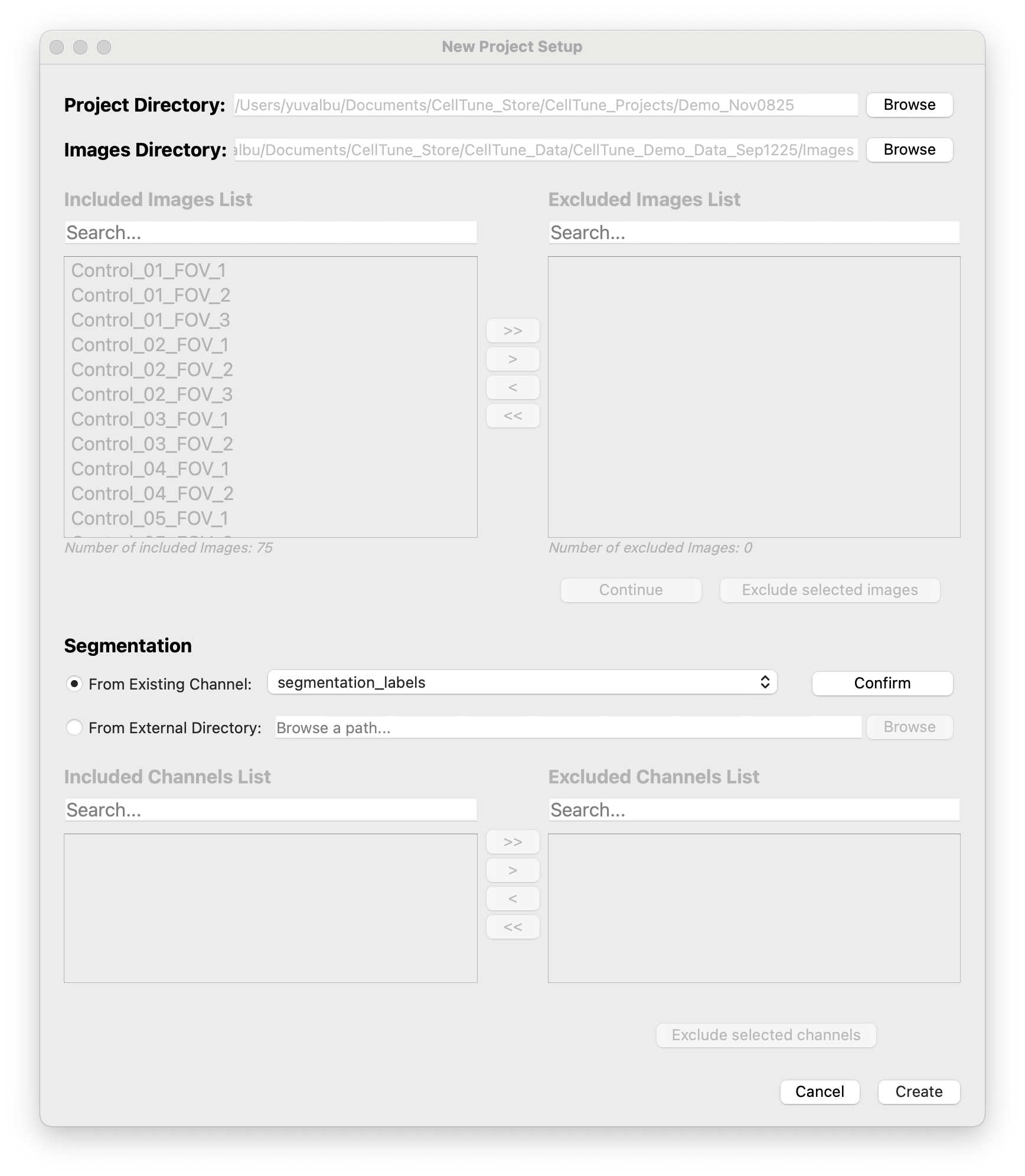
After setting the segmentation, click Confirm. The channels will populate the channel box. You can move channels to the right and exclude them. (You need to exclude them before continuing.)
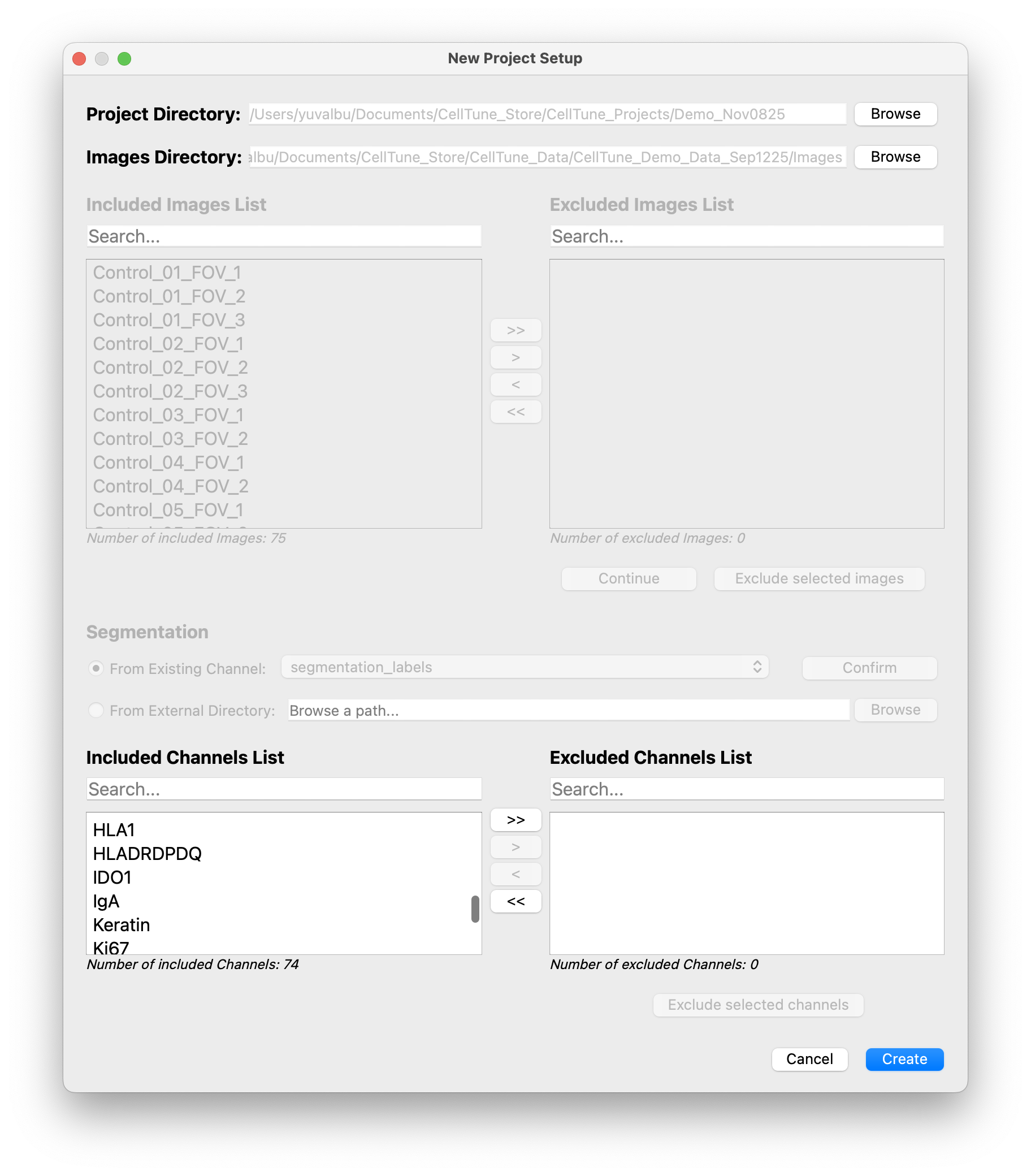
When you finish with the dialog and click Create, Zarrs will be generated for your images. These are optimized pyramidal-capable images. Please be patient:
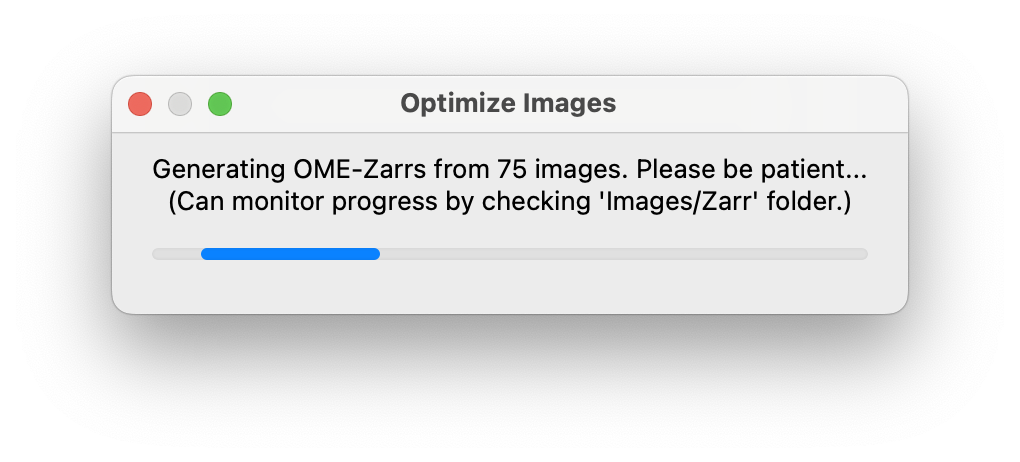
We are working on overhauling our progress bars right now. For now you can visualize the progress by seeing the Zarrs populating the project folder: 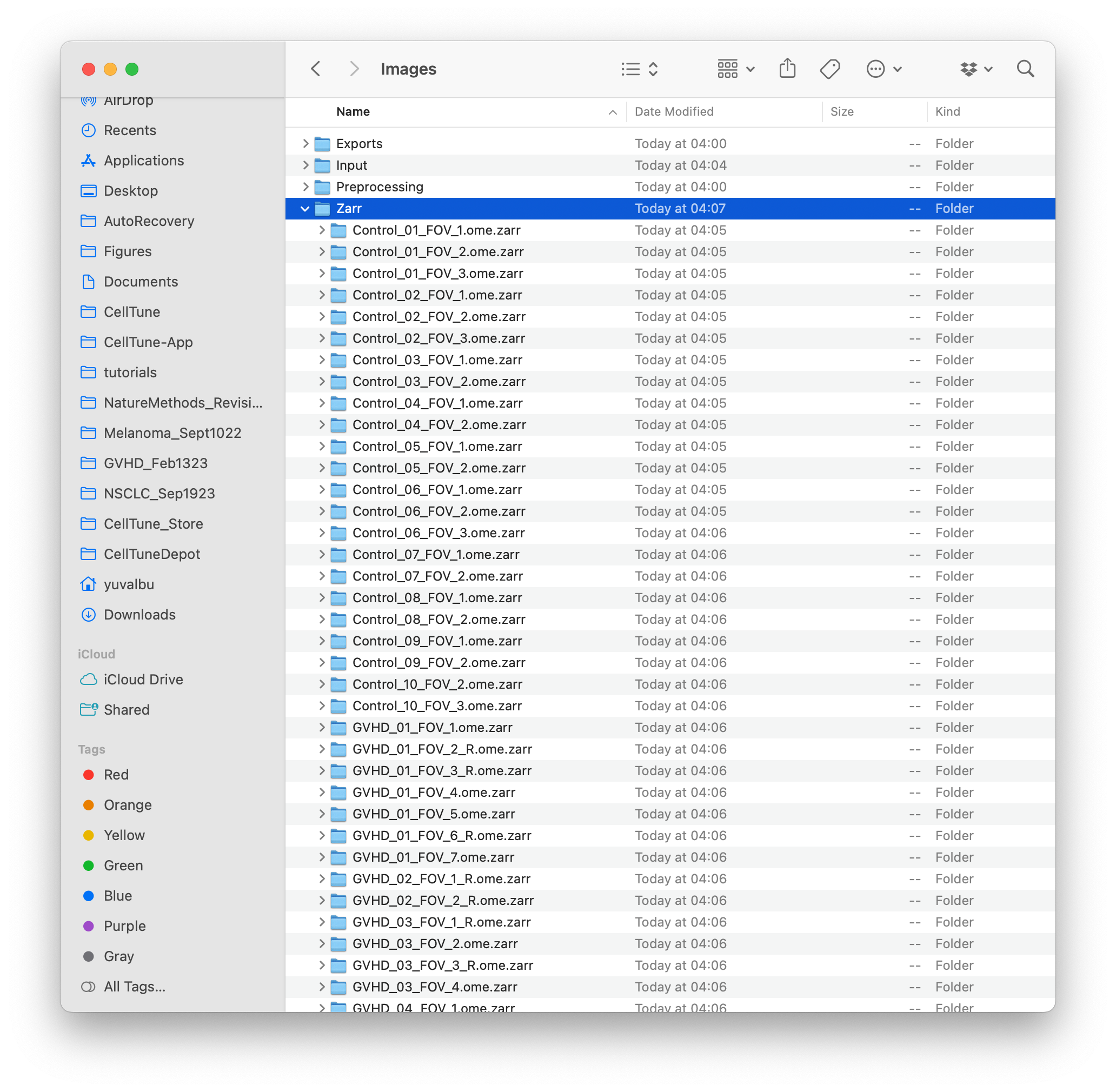
Note: You do not need to interact with these Zarrs directly. CellTune reads them efficiently.
After Zarrs are generated, basic cell info features (centroid locations, area) will be computed: 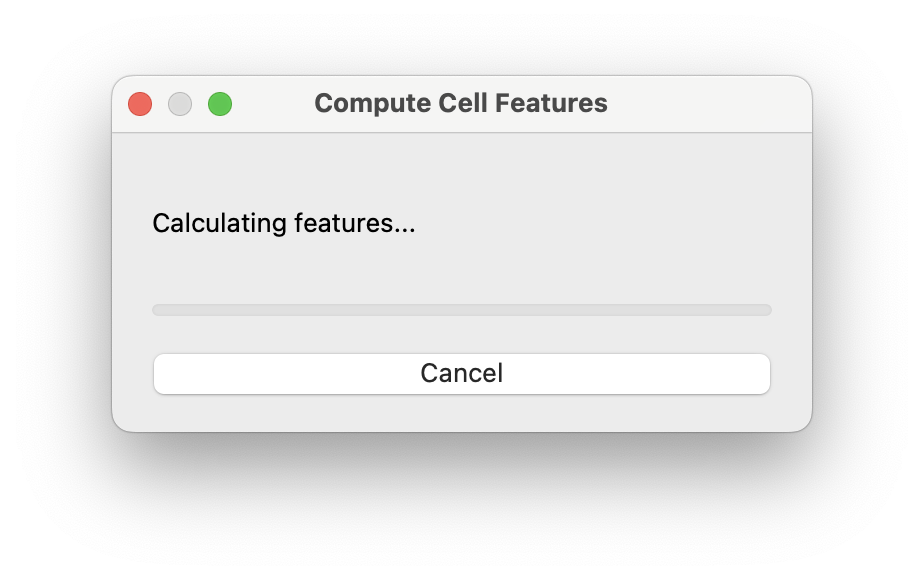
When it is complete you will see the following message: 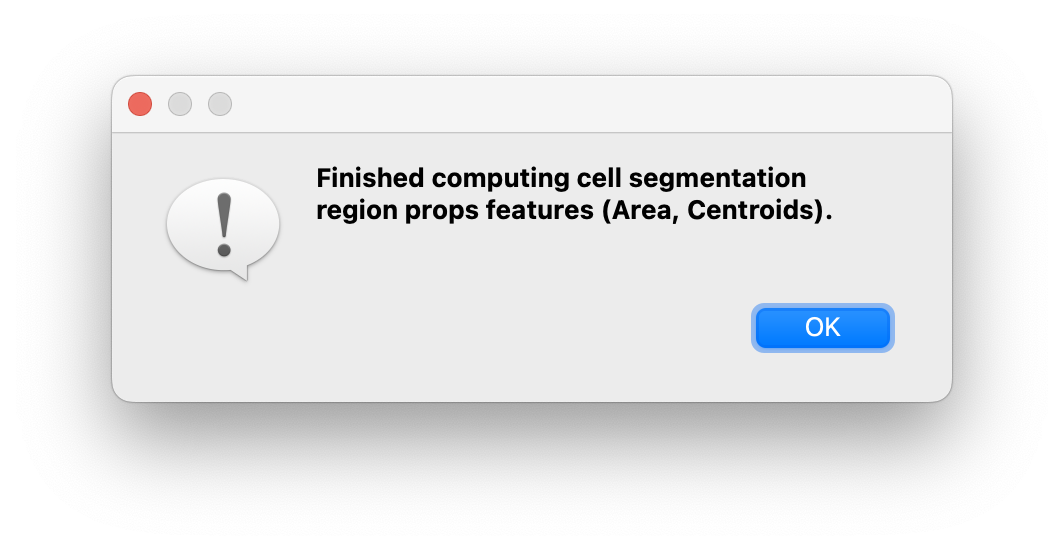
… and then your project will load!
Load Project
If you want to open a pre-existing project you can select it from the Recent Projects list on the startup screen and then click on the load project button. Or click on the load project button and navigate to the project file (.ctp).
Your project should load right away, as in the following video: