Labeling
CellType Name Conventions
We have standardized cell type naming conventions for our lab - feel free to follow or not.
It is helpful to use concise and consistent names for cell types while doing the classification process, e.g. CD4T instead of CD4+ T, without spaces, hyphens, special characters (other than underscores).
All the cell types we’ve used so far can be found in CellTuneDepot. (Before publication we change all the names at once to make them nice, adding spaces, using superscripts for +, etc).
We also highly encourage following our lab’s conventions for labeling ambiguous and unidentified cells:
- “Unidentified” = Cells that are negative for all lineage markers, lineage is unknown. [Unidentified comes up in every project and is always included in the training.]
- “Garbage” = Cells that are artifacts (e.g., multi-channel aggregates, overly positive for many markers, or otherwise unusable). [By default Garbage is included in training to find other similar cells, so it should be a recurring staining issue, otherwise filter out from training]
- “Ambiguous” or “Skip” = Cells that are ambiguous due to overlap or segmentation issues should be labeled “Ambiguous” or skipped entirely.
Labeling by Cell
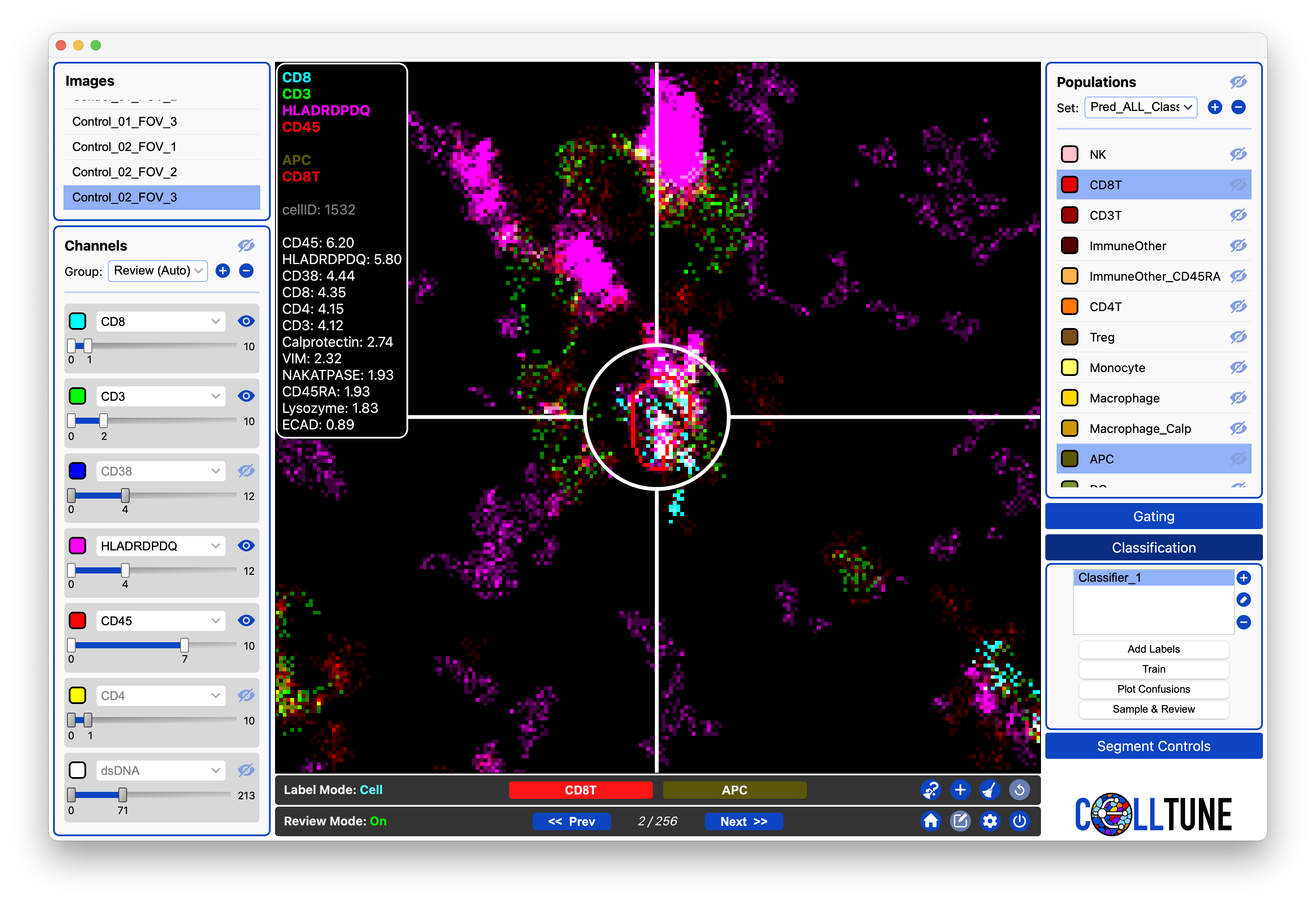
Labeling by cell requires that a cell is selected. Cells can be selected or unselected in the viewer by pressing Shift + Left Click. Selected cells are indicated by crosshairs.
The Labeling Toolbar will become enabled and the + button can be used to add the cell to a new or existing population.
You can also assign a cell to an existing population by clicking on the population (from the populations panel) when the cell is selected. Clicking on a population will remove the assignment of the cell from other populations unless you hold the Cmd button for multi-selection.
Populations that the selected cell belongs to will be highlighted in the Population Panel and they show up in the labeling toolbar.
If a cell belongs to multiple populations the labeling toolbar will enable you to click on a population to assign it to that one population (removes the cell from the alternate populations), e.g. if a cell has labels for both CD8T and APC you can click on the CD8T button in the labeling toolbar and it will only have that label.
We have many tutorials showcasing the labeling functionality.
Labeling by Population
There is interest in a mode where the user would be able to select a population for labeling and then all cells clicked on would be assign to that population. E.g. Labeling mode set to population, select CD8T, then every cell clicked on gets labeled as CD8T. It is on our short-list of new features to implement.
Other
Cells can also be labeled or assigned to populations through Gating (Create Population) and Landmarking.
Because Review Mode is designed for rapid, high-quality labeling, users typically spend most of their annotation time there, either reviewing predictions and assigning labels, or reviewing a sample from a gate, cluster, or landmark candidate population.