Training a Classifier
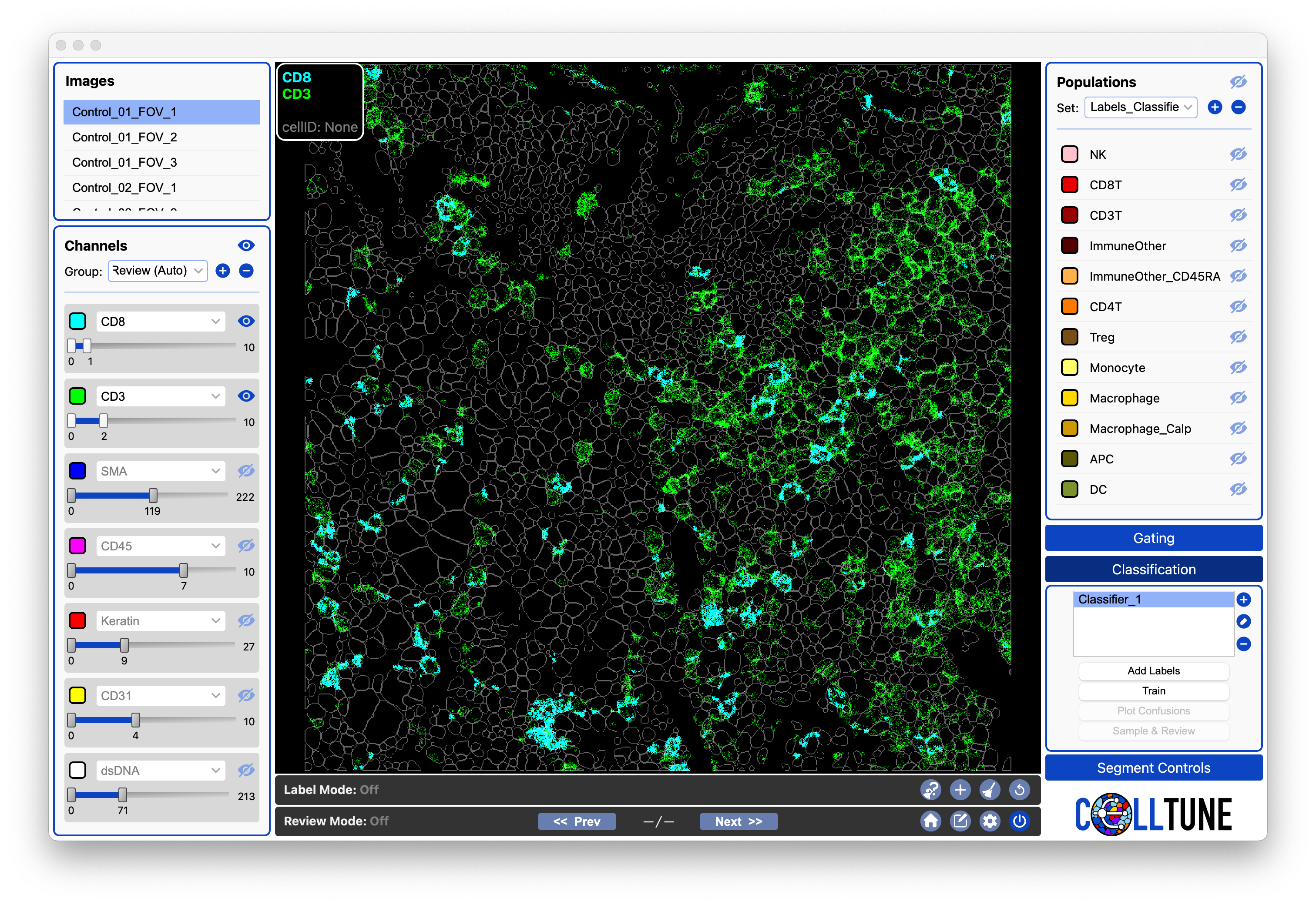
After adding labels to the classifier. You can select the classifier by clicking on it.
You should now see that the Train button is enabled. Click on it.
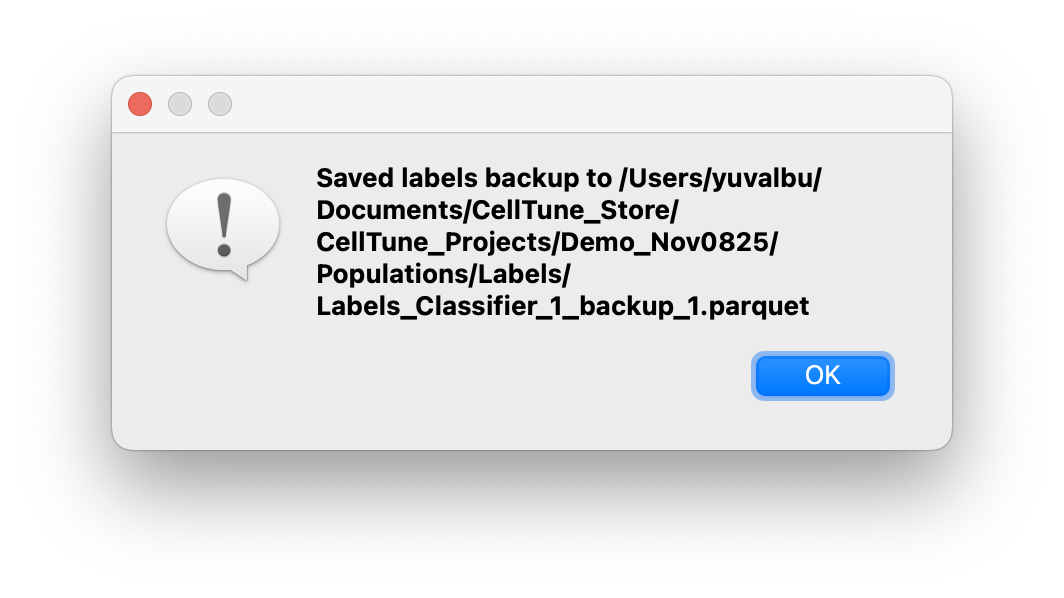
Every time you click to Train, a backup copy of your labels will be generated. You can view these in your project (and can delete them if you like, but they don’t take up much space.)
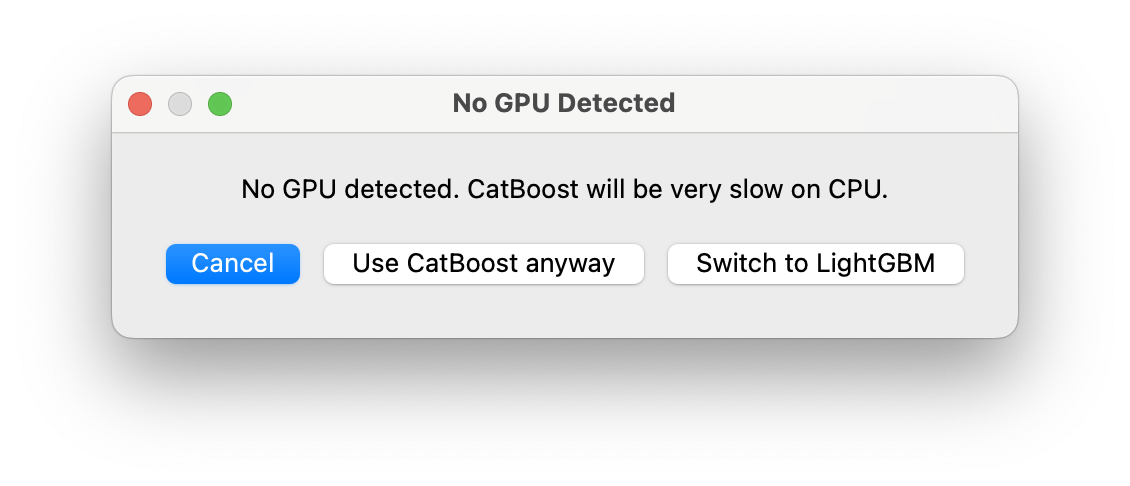
Then a dialog will open where you can select the models you want to use. We recommend always using XGBoost and CatBoost (the defaults).

If you do not have NVIDIA GPU, CatBoost will be slow (usually not more than 1–2 hours), so LightGBM may be substituted if desired. However in our experience, we recommend sticking with CatBoost for the most accurate results (unless its the tutorial).
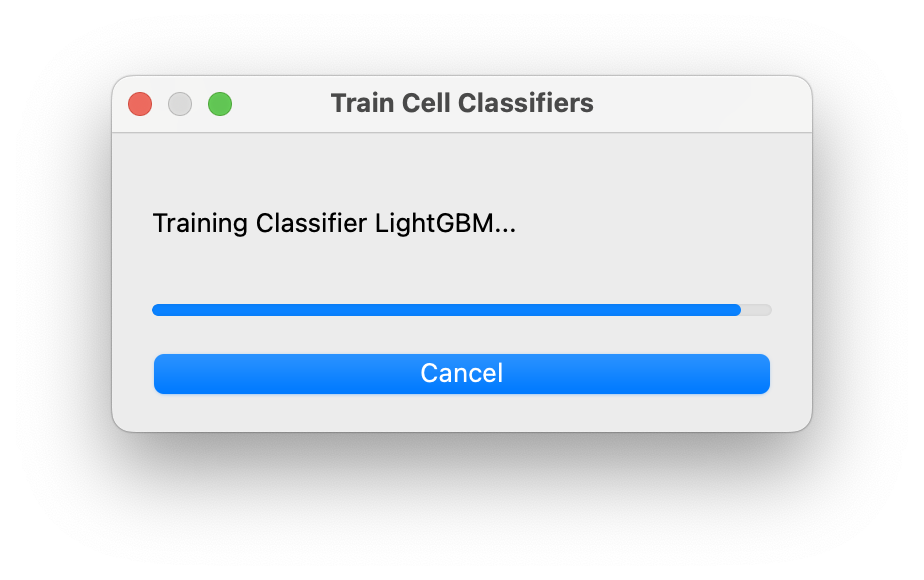
Training will begin and eventually you will see a progress bar with messages showing which model is being trained. Time can vary based on system. Please be patient. (Please be patient)

At the end of training you will see the following message:
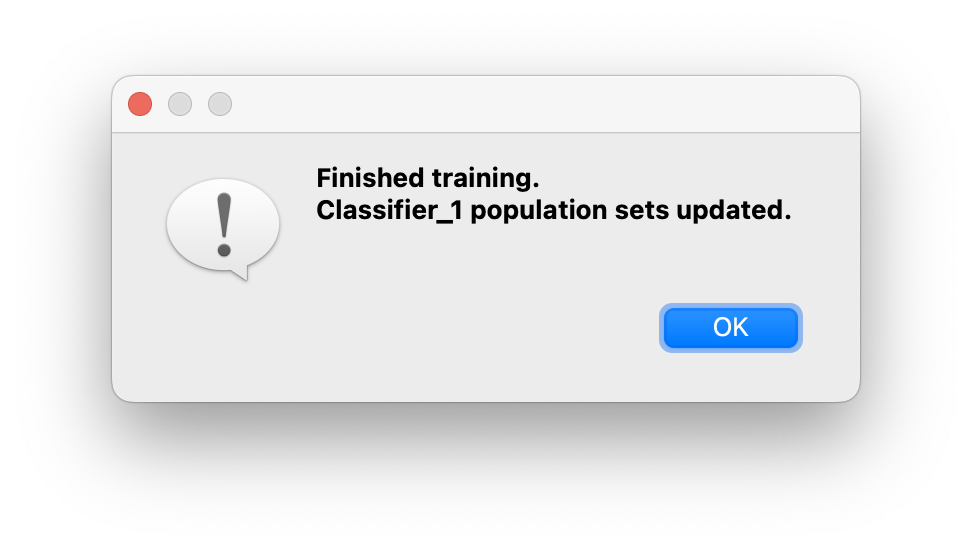
After a few moments - your predictions will be loaded into the population panel.
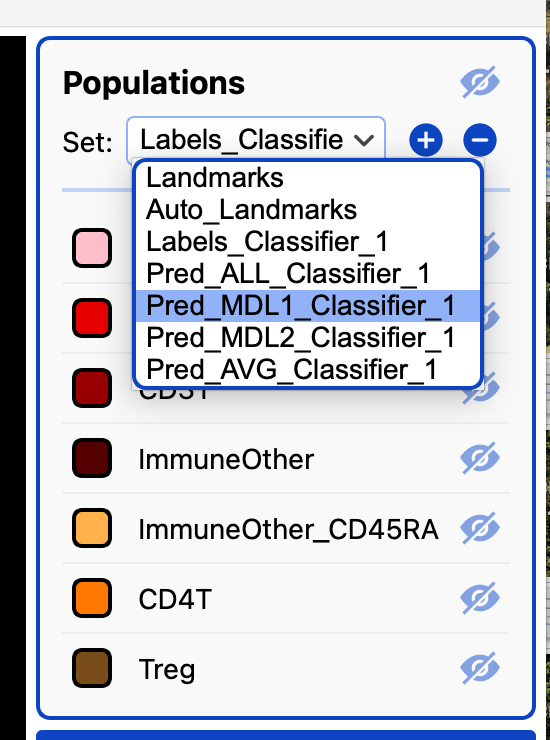
- After training, you will see 4 new (or updated) population sets Pred_ALL, Pred_MDL1, Pred_MDL2, and Pred_AVG.
- Pred_AVG, averages the probabilities of the two models to give one classification.
- Pred_ALL gives both classifications for each cell (it is one classification if they are the same classification).
- These 4 population sets will be updated each time you train.