Projects
A CellTune Project is the central workspace where all images, tables, populations, classifiers, and project settings are stored. Each project has a predictable folder structure, making it easy to organize large studies and keep data, intermediate files, and results in one place.
Recommended Folder Layout
You can just download the Demo Data which contains the recommended layout for you to use!
We recommend creating a top-level directory called:
CellTune_Store/
Inside it, create two subfolders:
CellTune_Store/
    CellTune_Data/
    CellTune_Projects/
CellTune_Data is where you place the raw inputs that CellTune will use (see Data Preparation section).
It contains two folders:
Images/ ← Preprocessed or raw images you want to load into CellTune
Tables/ ← Marker, CellType, and any other cell, patient, sample, or other metadata tables for your project.
CellTune_Projects is where all CellTune projects should be created and managed. Individual project folders will be generated through the GUI when you setup and start a new project.
Project Naming:
When creating a new project, we recommend using a consistent name format:
{TISSUE/DISEASE}_{MmmDDYY}
For example:
- Melanoma_Jan1426
- Colon_Nov0825
Your project should be created (through the GUI) at:
CellTune_Store/CellTune_Projects/{PROJ_NAME}/
Project Structure
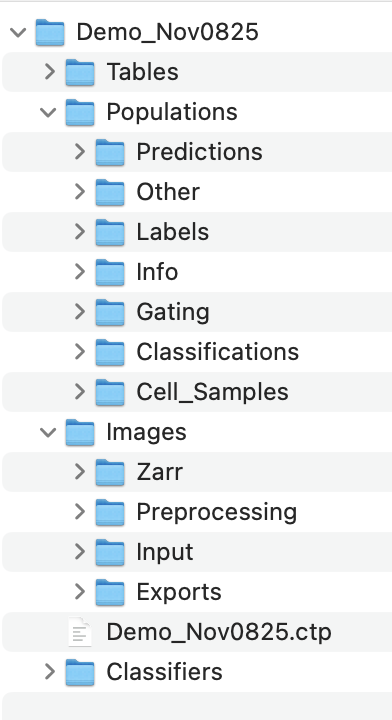
When CellTune creates a project, it generates the following folders and files:
{PROJ_NAME}/
    Images/
    Tables/
    Populations/
    Classifiers/
    {PROJ_NAME}.ctp
{PROJ_NAME}.ctp
A single project database file (CellTuneProject) that stores all project settings, app state, and internal variables.
Images Folder
Inside Images/, CellTune maintains several subfolders used during processing:
Images/
    Input/
    Preprocessing/
    Zarr/
    Exports/
Input: Contains soft/hard links to your images from CellTune_Data/{PROJ_NAME}/Images.Preprocessing: Temporary intermediates generated during preprocessing (Still under development).Zarr: Optimized OME-Zarr stores generated by CellTune from your input; this is what the viewer uses.Exports— Any images you export out of CellTune (e.g., RGB composites, overlays).
Tables Folder
/Tables/
    … cell tables (features) for each image …
This folder holds the cell feature tables generated or used by CellTune.
Populations Folder
All population-related data is stored here:
Populations/
    Predictions/
    Classifications/
    Labels/
    Cell_Samples/
    Info/
    Gating/
    Other/
Predictions: Model prediction outputsClassifications: Final assigned cell typesLabels: User-provided labelsCell_Samples: Sampled cells saved during gating or active learningGating: Gating resultsInfo: Metadata describing population setsOther: Miscellaneous population data
Classifiers Folder
Stores trained classification models (This is still under development)
Save Project
At any time you can save a project from the Menu or keyboard shortcut Cmd + S.
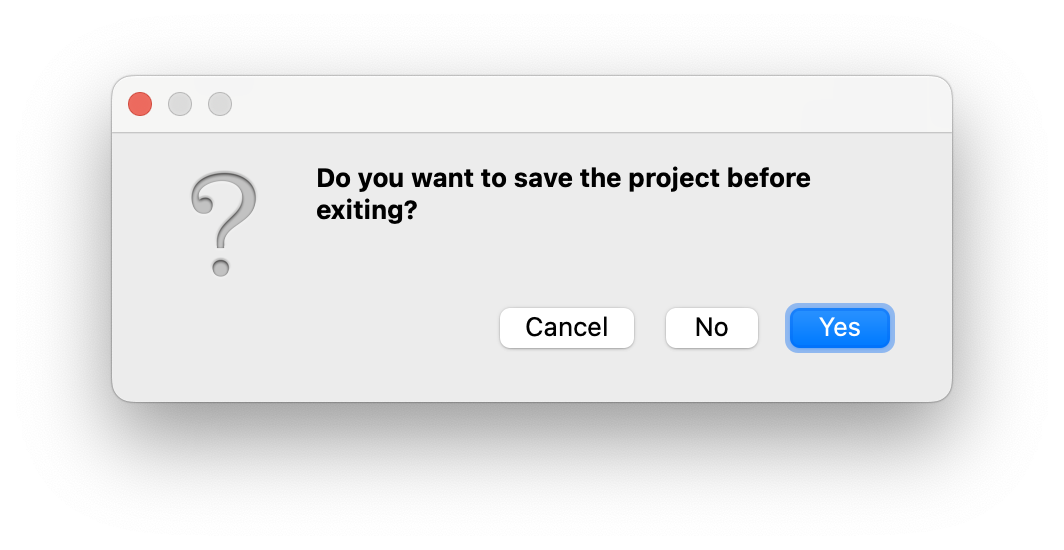
Before you close the project it will ask if you want to save the project (you should!).
Note: CellTune autosaves most parameters / settings as they change. Larger objects like populations are saved when changing populations.